Get work approved,not lost in email.
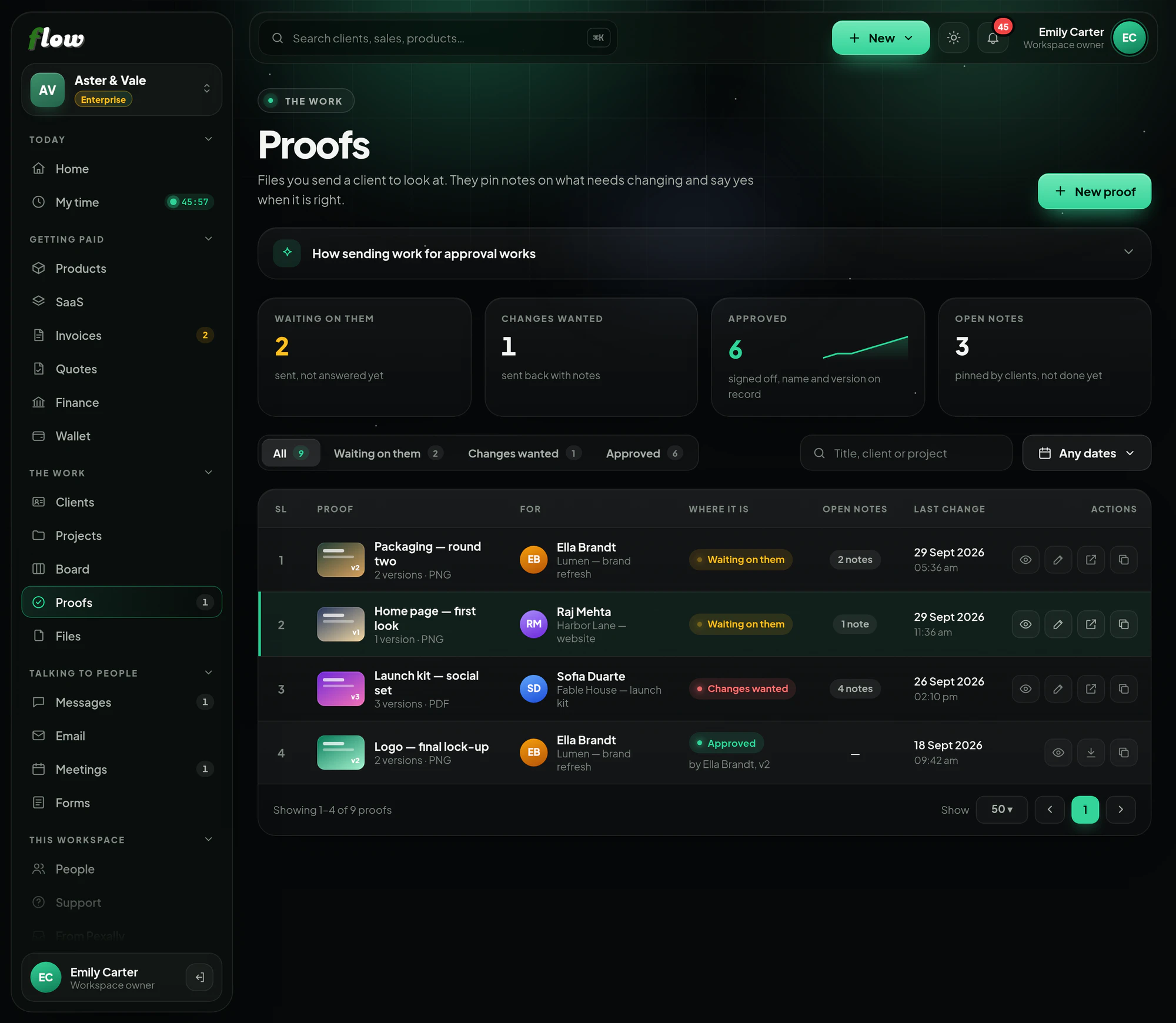
Send your client a link to the work. They leave notes — pinned to the spot on a picture — and approve it or ask for changes, and every decision is kept with the version it was about.
Included inFree trialGrowthEnterprise
flow.pexally.com/aster-vale/proofs
How it works
Proofs, step by step.
Send work for a client to approve and mark up. These are the same steps you will see inside Flow, in the guide at the top of Proofs.
- 01Make a proofSay what it is, and which client and project it belongs to.
- 02Add the work as a linkPaste a Google Drive, Dropbox, OneDrive, Figma, YouTube or Vimeo link, or a direct link to an image. Nothing is uploaded.
- 03Send it to your clientThey open your link without an account and leave notes — pinned to the exact spot when it is a picture.
- 04They approve, or ask for changesEach decision is kept with their name, the time and the version they looked at.
- 05Send a new versionAdding a version puts it back in front of them. Earlier versions stay on record, in order.
Why it is better in Flow
What makes Proofs different.
- Pinned notesOn a picture, a note is pinned to the exact spot it is about.
- Links, not uploadsDrive, Dropbox, OneDrive, Figma, YouTube, Vimeo or an image link — nothing to upload.
- Versions in orderA new version goes back to your client, and the old ones stay on record.
- A record of yesWho approved, when, and exactly which version.
Questions
About Proofs.
Does my client need an account?
No. They open the link you send.
Can I proof videos?
Yes — YouTube and Vimeo links, as well as design files and images.
Works with