Projects that endin a paid invoice.
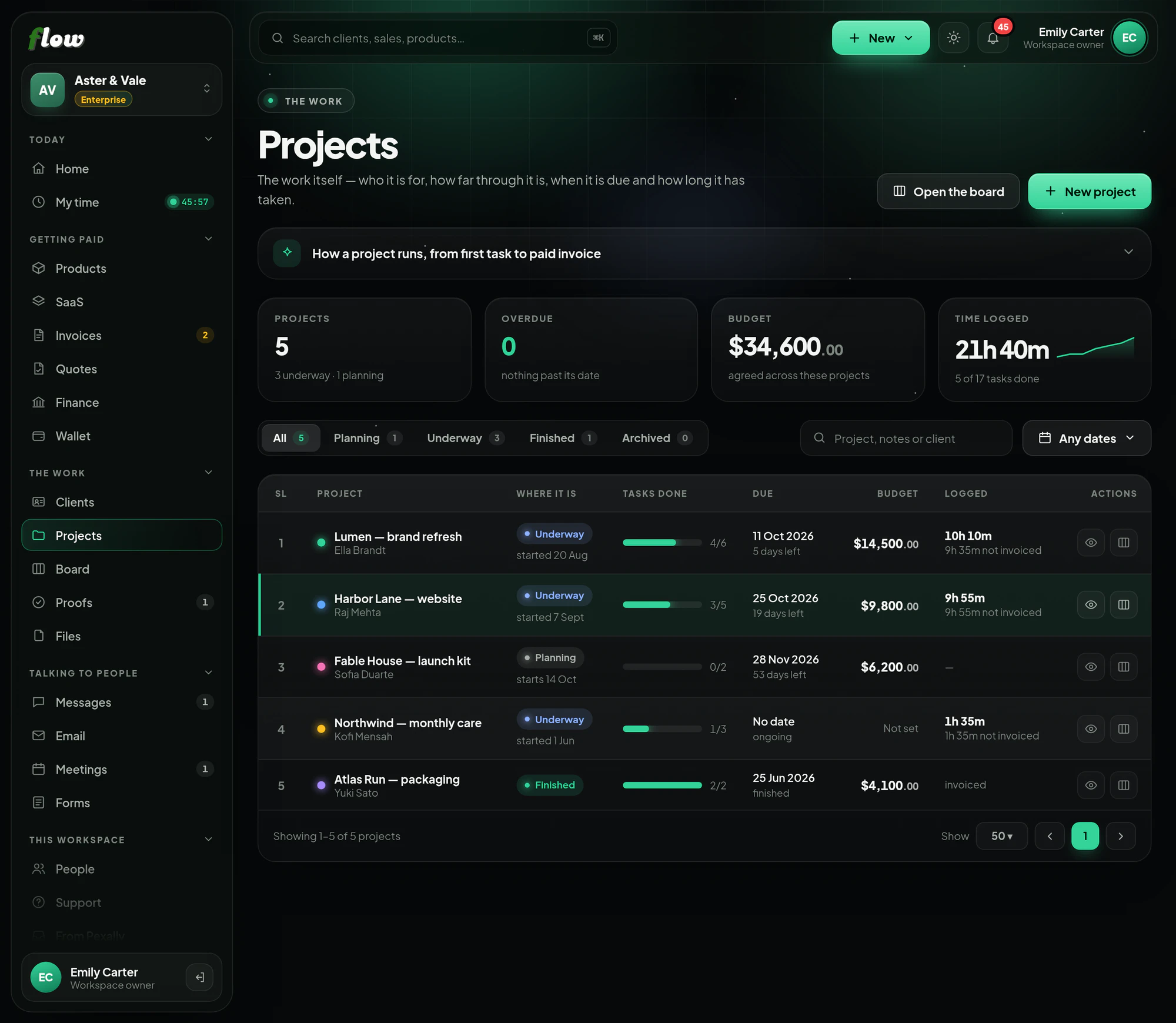
Every piece of work with its client, dates, budget and tasks — shared with your client where you choose, and billed from the project in the way you agreed.
Included inFree trialGrowthEnterprise
flow.pexally.com/aster-vale/projects
How it works
Projects, step by step.
Projects, tasks, and the bill for each piece of work. These are the same steps you will see inside Flow, in the guide at the top of Projects.
- 01Start itName it and say which client it is for. Dates, a budget and an hourly rate can come now or later.
- 02Break it into tasksAdd tasks and move them across the Board as they progress. Time logged in My time counts against the project.
- 03Show your clientChoose which tasks they see, then make their link under Client portal. They follow along and leave notes without an account.
- 04Keep an eye on the budgetLogged hours and their value are shown against the budget and rate you set.
- 05Bill itThe logged time, the whole budget, a deposit, instalments or any amount — each makes a draft invoice you check before it is sent.
Why it is better in Flow
What makes Projects different.
- Budget and rateSet a budget and an hourly rate, and see what has been logged against them.
- A client portalOne link for your client to follow progress and leave notes, without an account.
- Five ways to billLogged time, the whole budget, a deposit, instalments or any amount you choose.
- Time countsEvery hour logged in My time lands on the project it was for.
Questions
About Projects.
Can my client see everything?
Only what you share. You choose which tasks appear on their portal.
Does billing send an invoice straight away?
No — it makes a draft invoice you check and send yourself.
Works with